OVERMATCH
Overwatch matches, scrims, and clans all in one place. Find a team that fits your tier and role, run a clan, schedule clan wars, and chat with the people you played with.
i What is OVERMATCH?
A matchmaking and community app for Overwatch players. (Think of it as an Overwatch version of PLAB.)
Recommends scrims and in-house games that fit your tier, role, voice-chat preference, and more, using rule-based logic.
Create a clan, manage members and staff, and view your schedule on a calendar.
Build a roster, find an opposing clan, and coordinate 1:1 — chat room, schedule, and results included.
Chat 1:1 with teammates you've played with, people you follow, and fellow clan members.
1 Login & Quick Sign-up
Log in with your Battle.net account and your BattleTag links automatically.
Login
Log in with Battle.net — Authenticate with your Blizzard account and your BattleTag (e.g., Name#1234) is linked as-is. There's no separate registration step.
Quick Sign-up (3 steps)
You complete this just once, on your first login. Your nickname is auto-filled from the front part of your BattleTag.
- Basic info — Review and enter your nickname (editable), age, gender, and region.
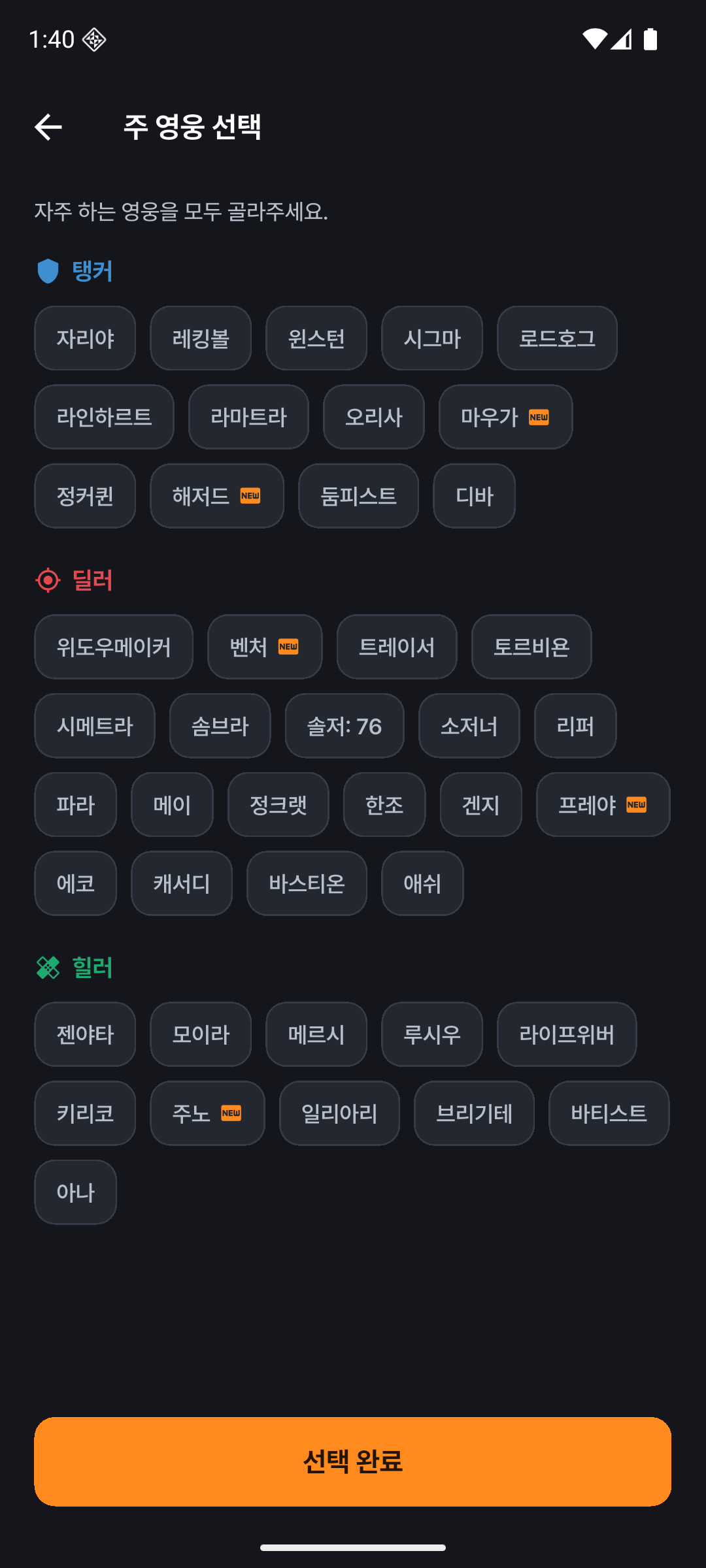
- Main roles — Pick every role you play among TankDamageSupport and Flex. You can also choose your main heroes.
- Tier — Set your current tier and sub-rank (1–5) per role. (e.g., Damage Diamond 3)
2 Home Screen
Your status at a glance, plus tailored recommendations.
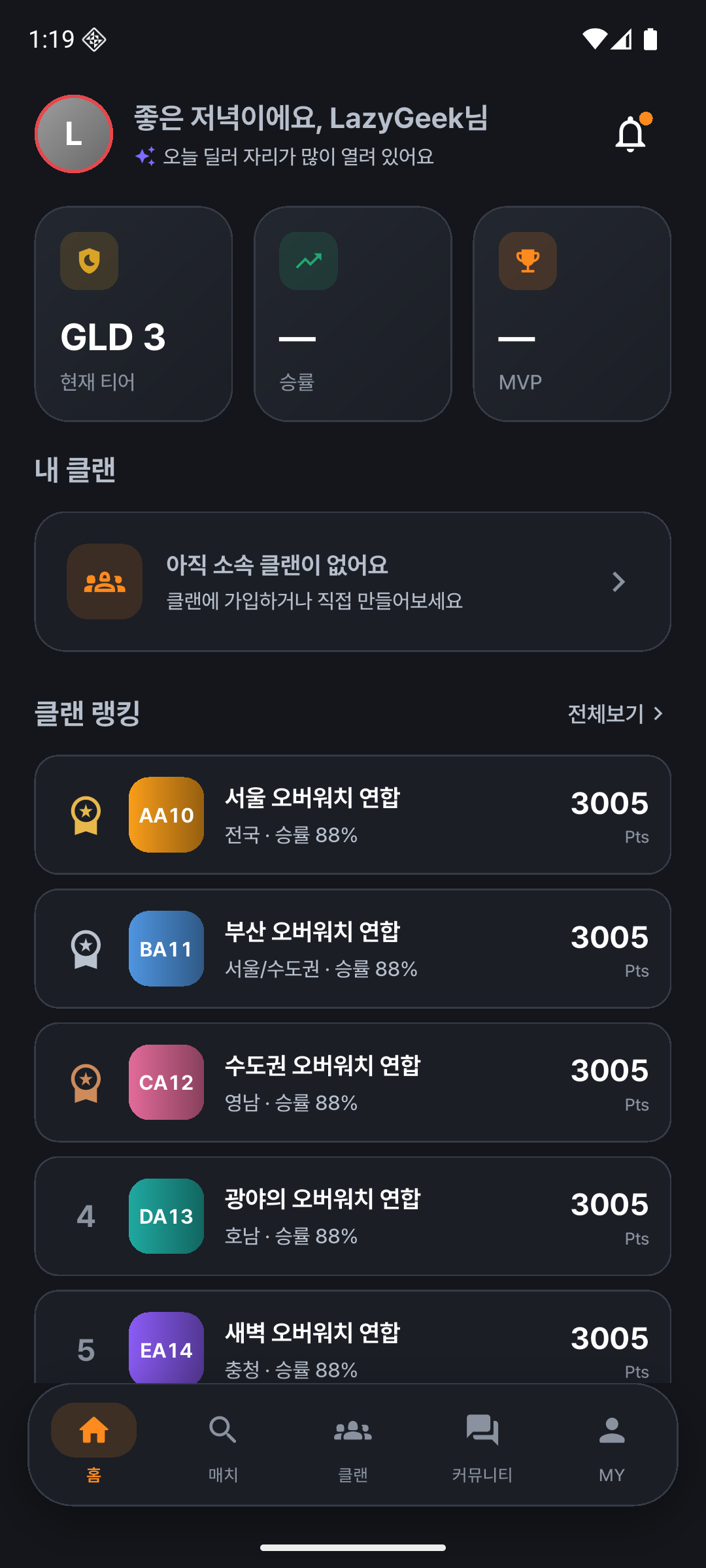
- Greeting + one-line status — Shows in real data how many openings there are right now for your main role.
- My tier / win rate / MVP — Summary cards. New accounts show "—".
- Tailored matches — Recommended matches selected on a rule basis (tier, role, voice, deadline, etc.). Each card shows why it's recommended, such as "Matches your tier."
- My clan / recent clan war results / clan rankings — Your clan and what's happening in the community.
3 Matches (Scrim Matchmaking)
Find and join a match that fits your conditions, or open your own match to gather a team.
Finding a match
- Filter by tier, mode, server, role, and more.
- Check the recruited count (e.g., 3/5) and open role slots on each card.
Joining a match
- Tap a match to open its details.
- Pick a role slot and tap Apply to join — you're done once the button changes to "Cancel."
- Use Q&A to ask the host questions in the comments.
Creating a match
- The + button at the top right of the match list.
- Set the title, mode, tier range, time, role slots, and more. (The submit button stays disabled while the title is empty.)
- Create match — You become the host, and you manage matches you've created under "MY → My Matches."
4 Clans
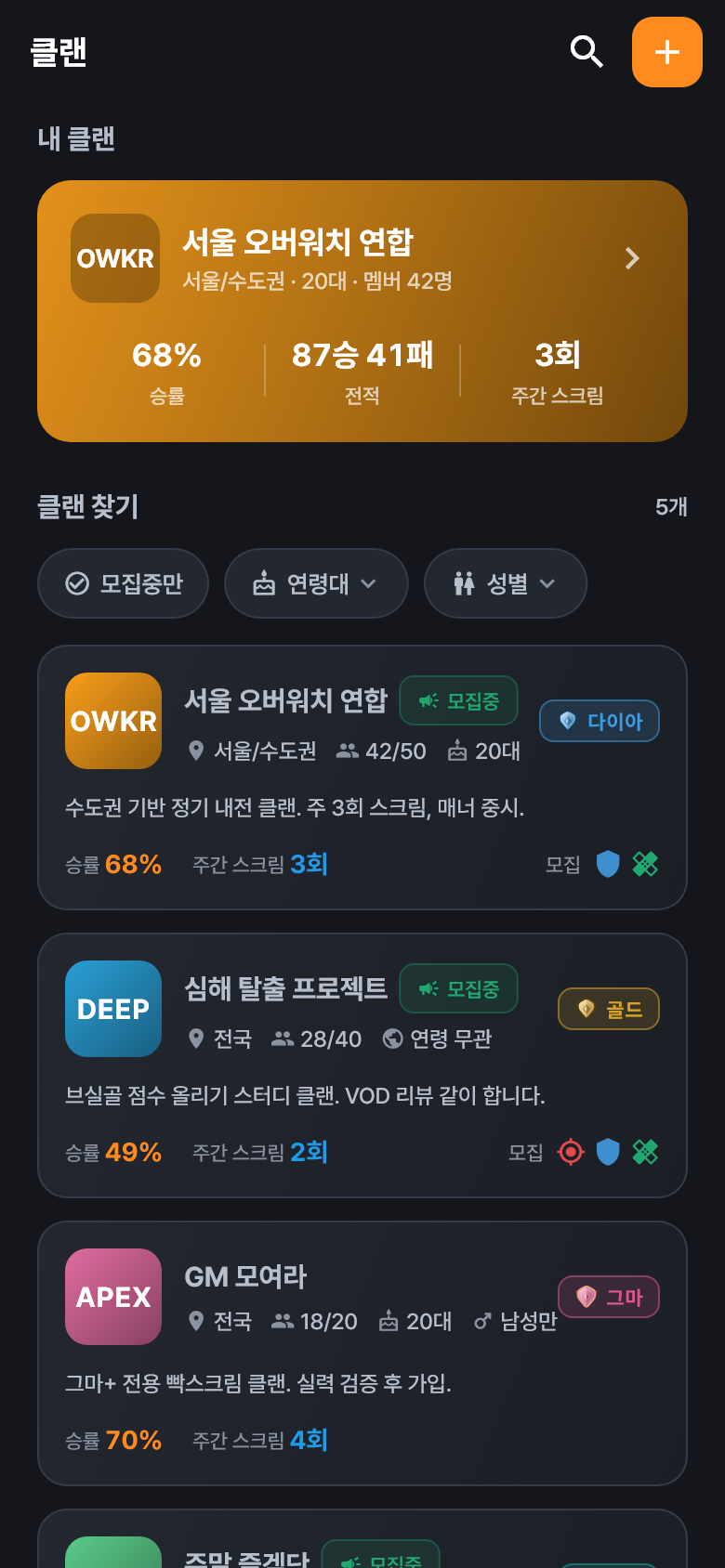
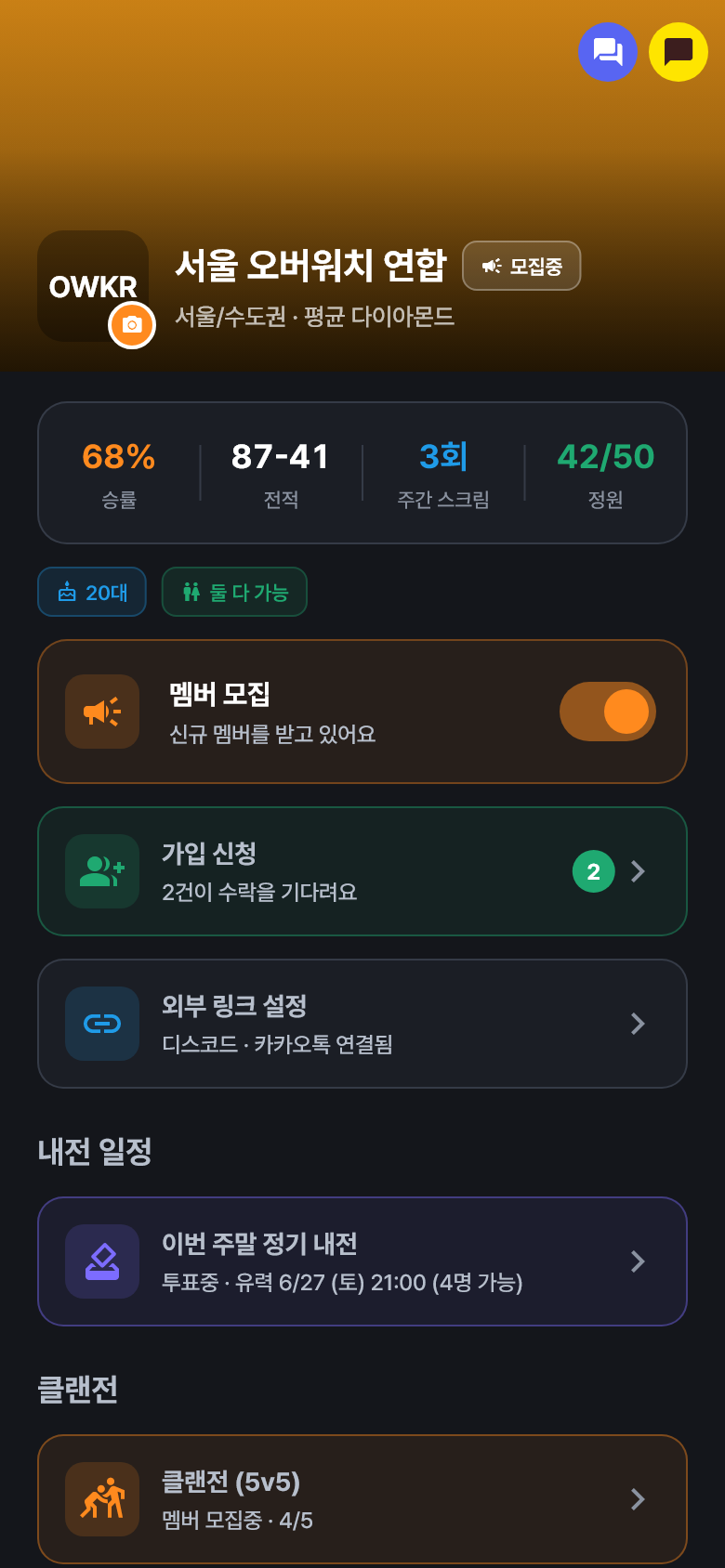
Gather a team to run a clan, and manage members, schedules, and records.
Joining a clan
- From the clan list or rankings, open the details of a clan you like.
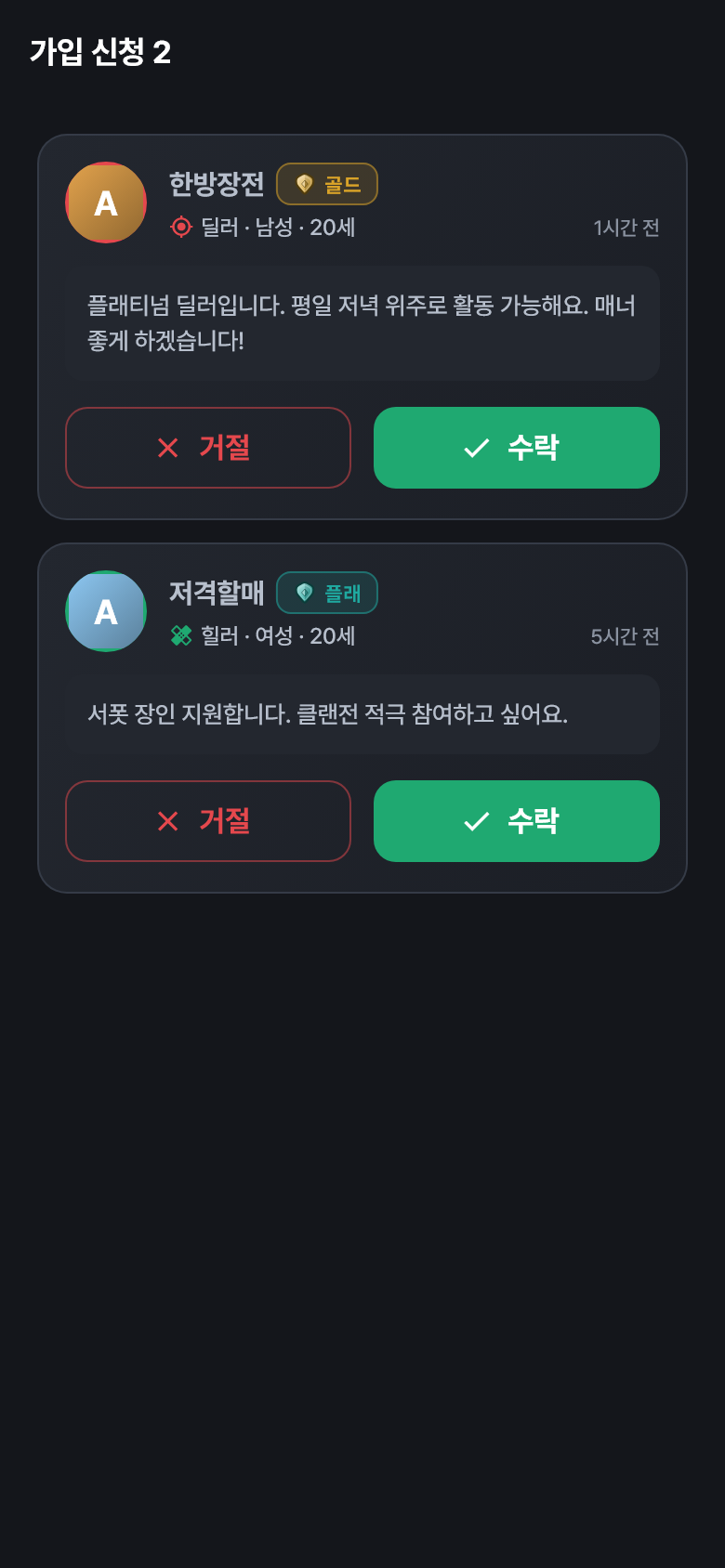
- Apply to join — Write your role and a message and send it. (Status: "Application sent · Awaiting approval")
- You become a member once the clan staff accepts you.
Creating a clan
- The + at the top right of the clan list → enter the name, tag, region, description, etc., then tap Create clan. (Disabled until you enter a name and tag.)
- You can upload a logo and banner from your gallery.
Managing a clan (staff)
| Feature | Description |
|---|---|
| Accept / reject join requests | Handle pending applications. |
| Member management | Appoint or remove staff, and kick members. Up to 5 members show in the summary; use "View all members" to search and filter by role. |
| Transfer ownership | Hand over clan leader rights to another member. |
| Open / close recruiting | Toggle whether join requests are accepted. |
| Clan calendar | View scheduled clan wars on the calendar. |
5 Clan Wars
This is the longest flow in the app. It runs through steps 1 → 6 below. Follow along with the actual screen for each step.
-
 1
1Create a clan war & recruit a roster
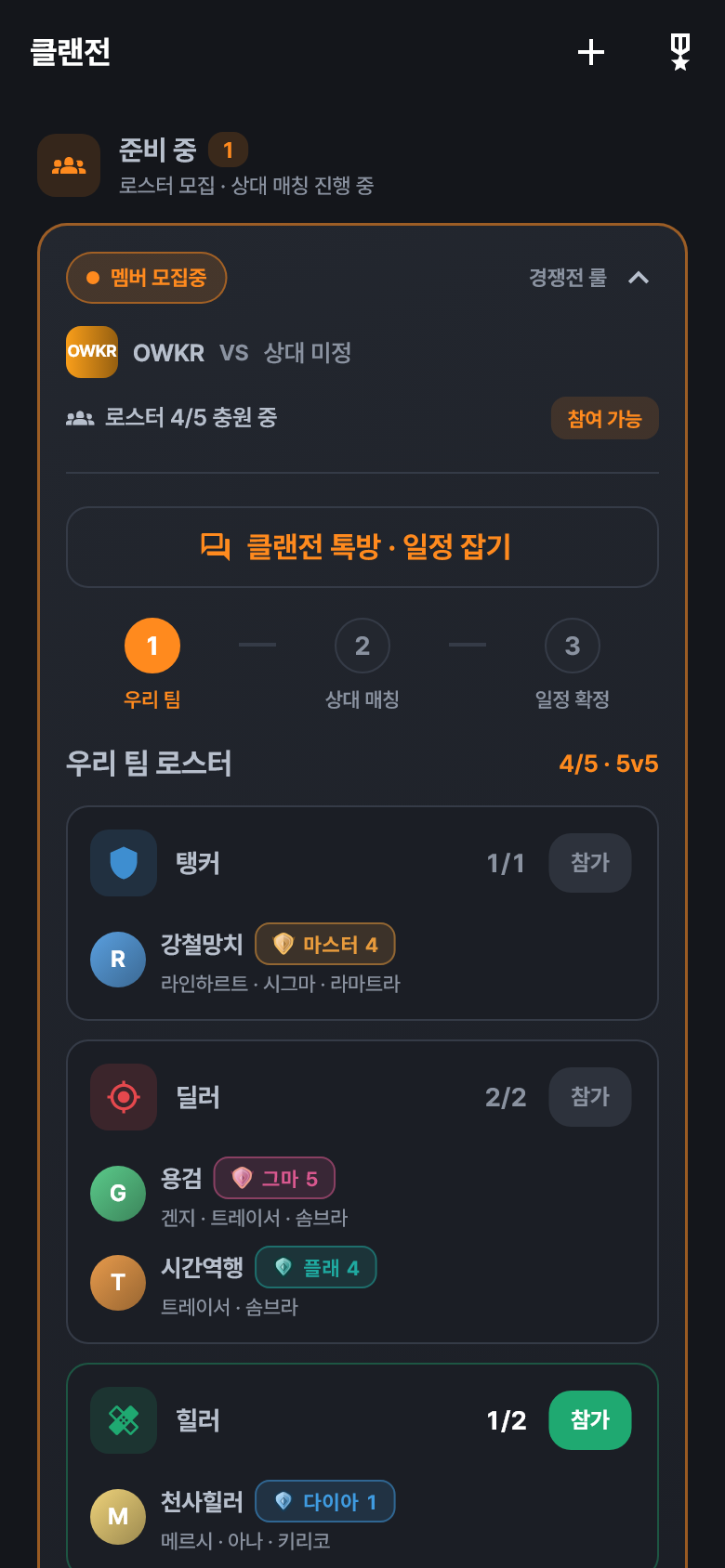
Staff open a clan war by setting the rule set (Competitive / Open Competitive) and the target opponent tier range (e.g., Gold 5 ~ Diamond 1). Members join the TankDamageSupport slots (5 starters + 1 substitute). The 1·2·3 step bar at the top shows your progress.
-
 2
2Find an opposing clan
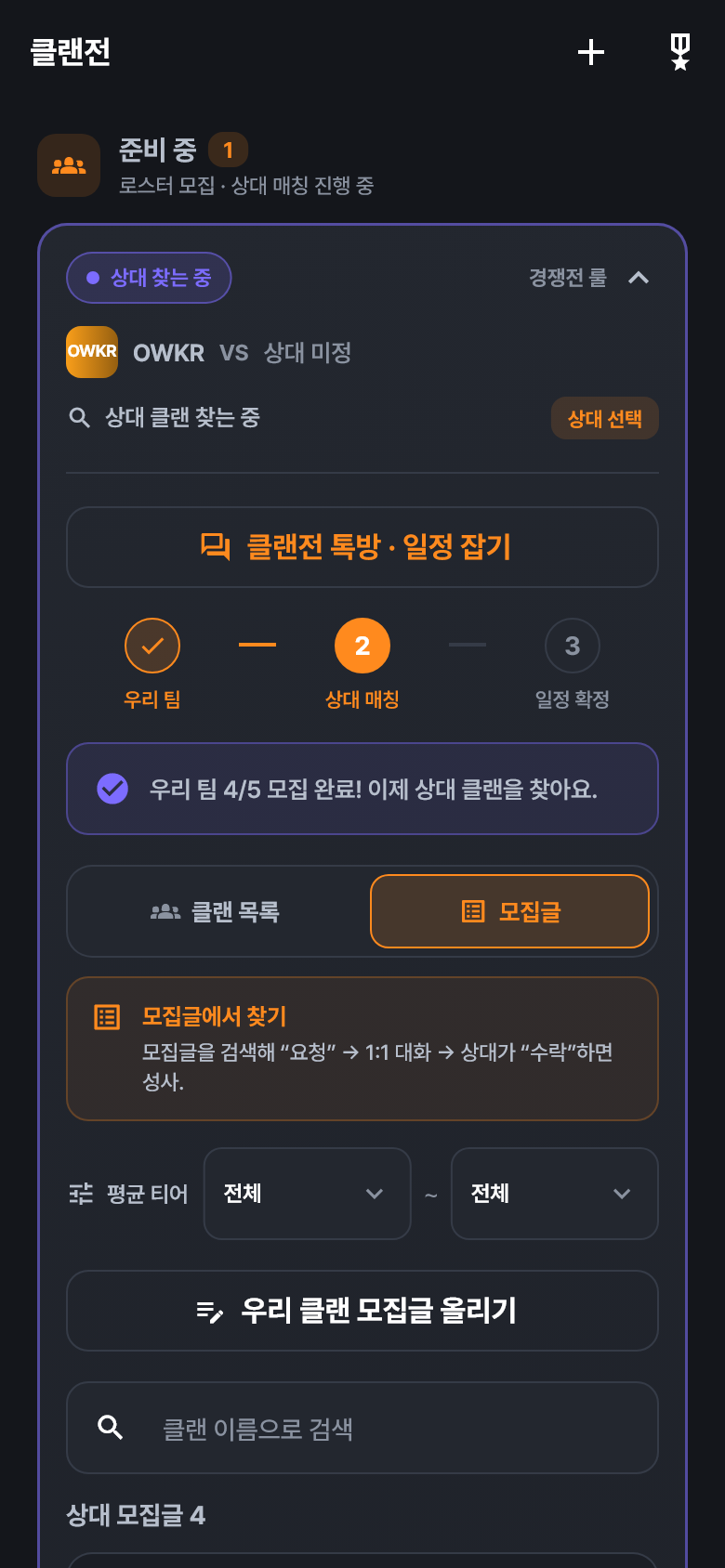
Once the roster is full, start finding an opponent. Pick a suitable opponent from the clan list or a recruiting post and send a challenge request. (The matching filter's default tier is auto-set to the target range you chose when creating the clan war.)
-
 3
31:1 challenge chat & acceptance
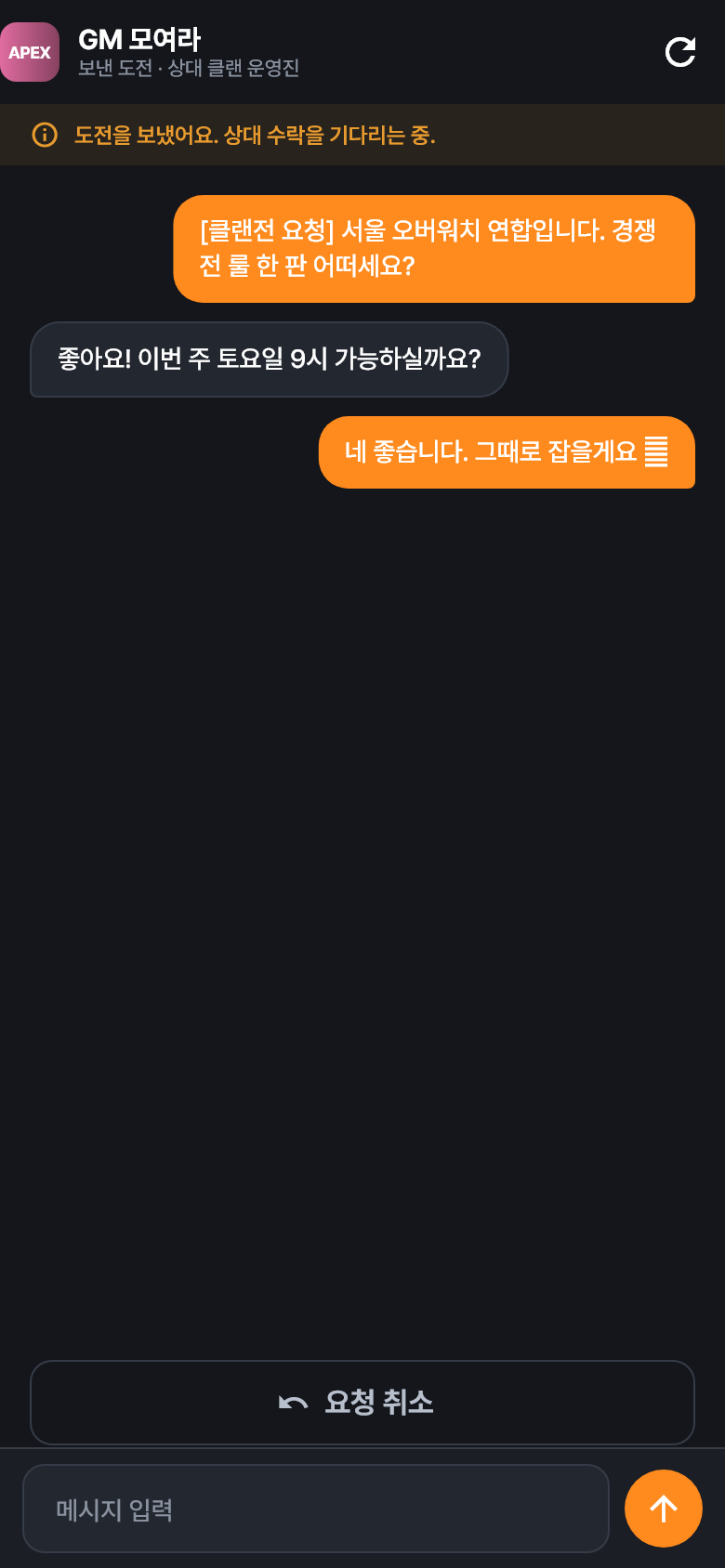
When you send a request, it goes to the opposing clan's staff and a 1:1 chat room opens. Coordinate the schedule and rules, and once the other side accepts, the clan war is set. (Both automatic and manual matching follow the same "challenge → chat → accept" flow.)
-
 4
4Clan war chat room & schedule
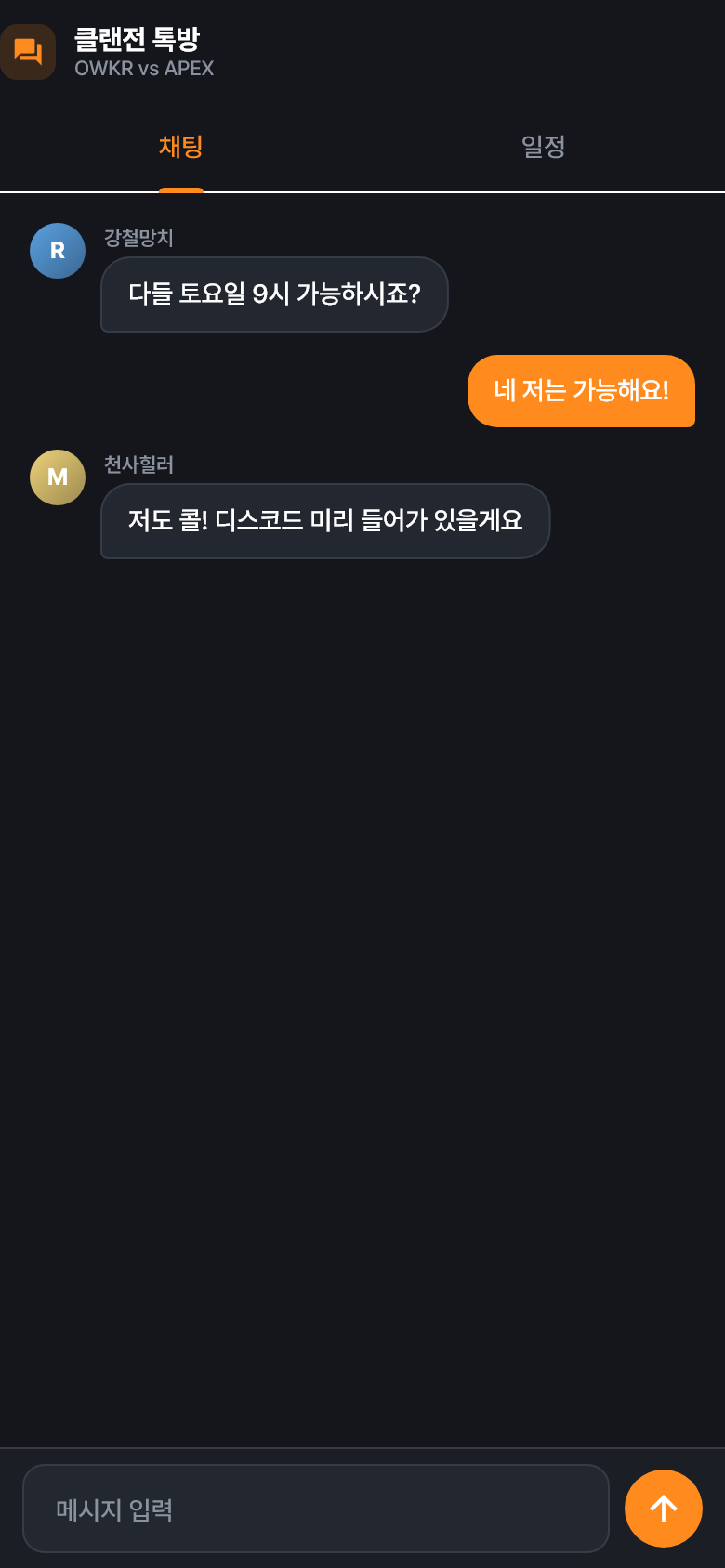
Once it's set, a clan war chat room (group chat) opens. In the Schedule tab, propose candidate times → vote → confirm, and the confirmed time also appears on the clan calendar.
-
 5
5Enter match results
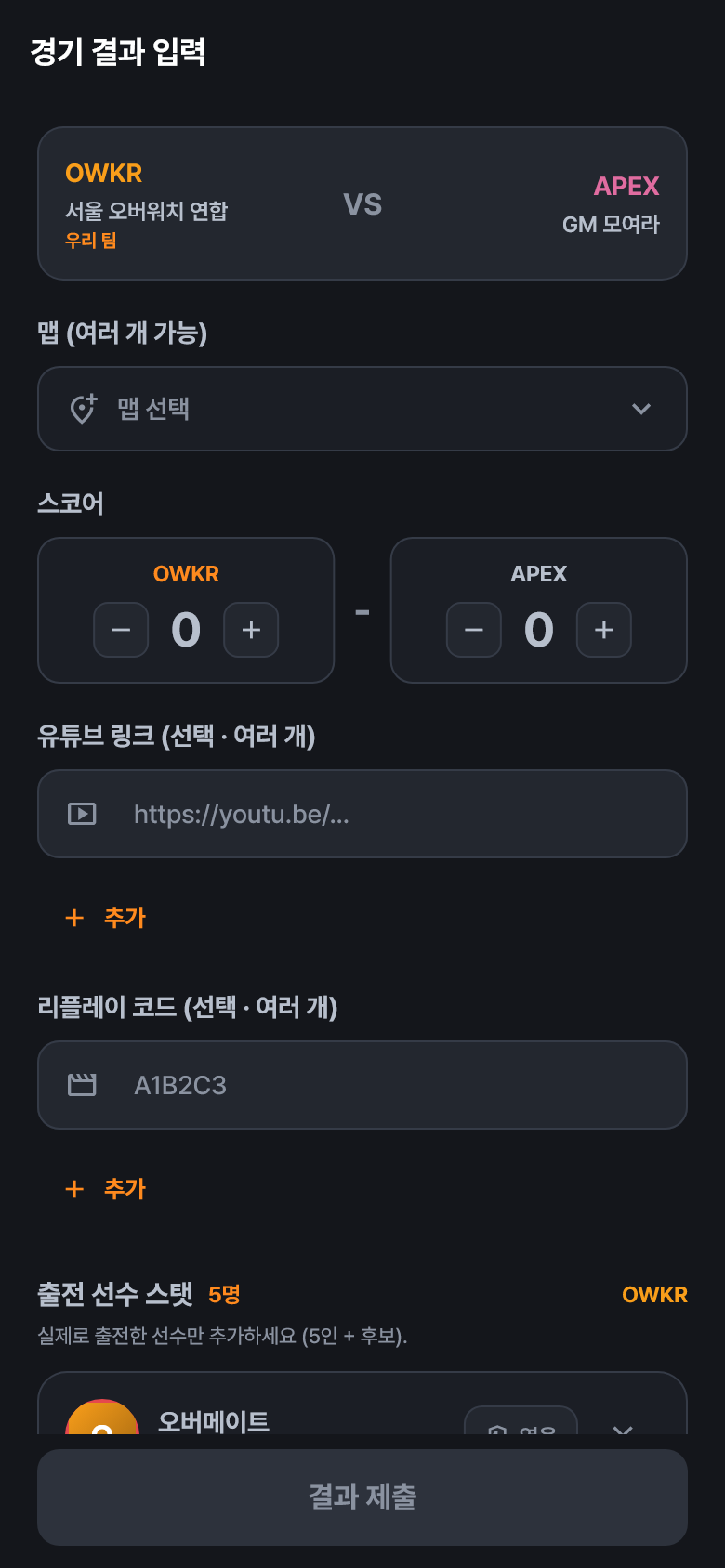
After the match, the host's staff enter the results — maps (multiple), score, YouTube/replay links (multiple), and stats for each player who actually played. For the lineup, pick only the players from your full roster who actually took part.
-
 6
6Accept → record confirmed
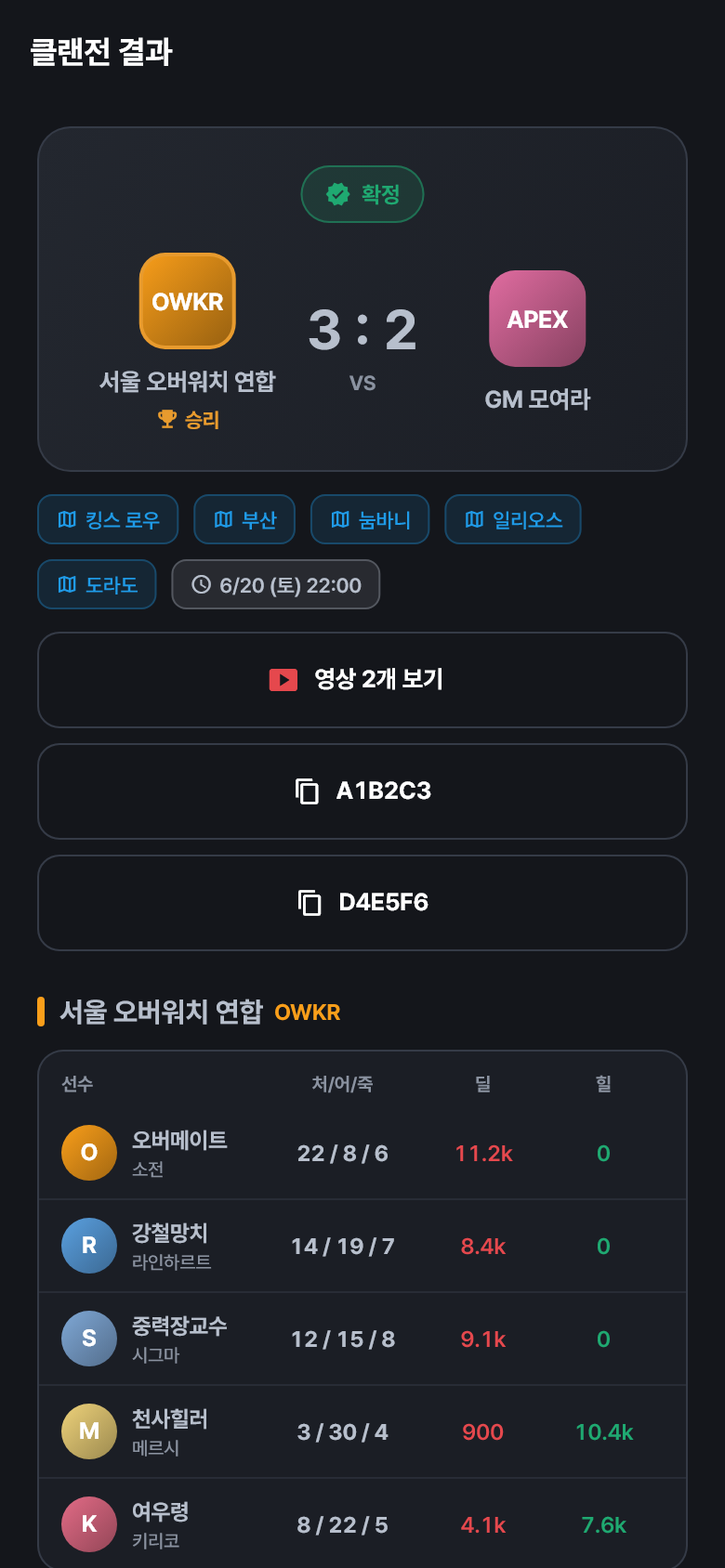
The result is confirmed once the opposing clan adds their own team's stats and accepts (or auto-confirms after 48 hours). Confirmed results are saved to your record, and the win/loss counts toward the clan's history. YouTube videos play right inside the app.
6 Messages & Following
Chat 1:1 with people you've played with, and follow players you like.
Starting a new chat
- Tap New chat at the bottom right of the Messages tab → pick someone to start.
- New-chat candidates = clan members · people you follow · recent match teammates (up to 50).
- Messages you send are actually saved and can be read by the other person.
Following
- Tap the Follow button on a player's profile. People you follow appear as new-chat candidates.
- Tap the Followers / Following counts on a profile to view the lists.
Clan war chats
Ongoing clan war challenge chats are grouped separately at the top of the Messages tab.
7 My Profile (MY)
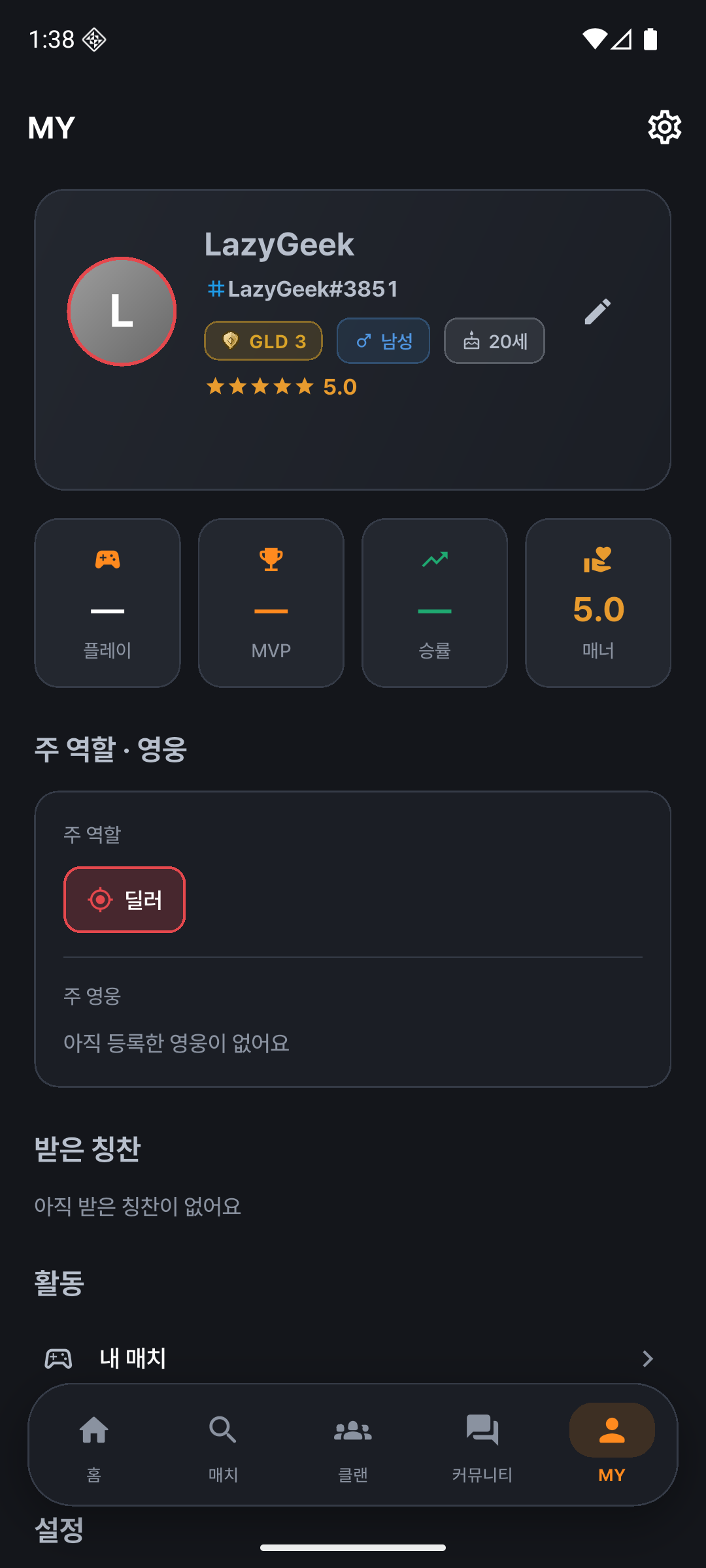
- Edit profile — Set your nickname, bio, region, roles, main heroes, and your tier per role (Tank/Damage/Support each).
- Profile photo — Upload from your gallery. (Reflected across home, clans, matches, and more.)
- Followers / Following — Check counts and lists.
- Battle.net — Shows your linked BattleTag.
- Settings — Language, terms & privacy, and log out.
8 Community & Feedback
- Community — General board / discussion board. Write posts, comment, and like.
- Feature requests · bug reports — Leave suggestions to improve the app and vote on them.
- Search — Find matches and clans by keyword.
- Notifications — Get updates like join approvals and challenge requests.
? FAQ
My "new chat" candidates are empty.
That's not a bug — it's a cold-start state where you don't have any connections yet. Candidates fill in from clan members · people you follow · recent match teammates. They'll appear once you join a clan, follow someone, or play a match together.
I want to set a different tier for each role.
In step 3 of quick sign-up and in Edit Profile, you can set the tier and sub-rank (1–5) separately for Tank/Damage/Support each.
Who enters clan war results?
The staff of the host clan (the side that opened the match) enter them first. The result is confirmed once the opposing clan adds their own team's stats and accepts, and it auto-confirms after 48 hours.
Matches/clans are empty at first.
A newly created account has no data, so it's normal for it to be empty. It fills in once you create a match or join a clan.